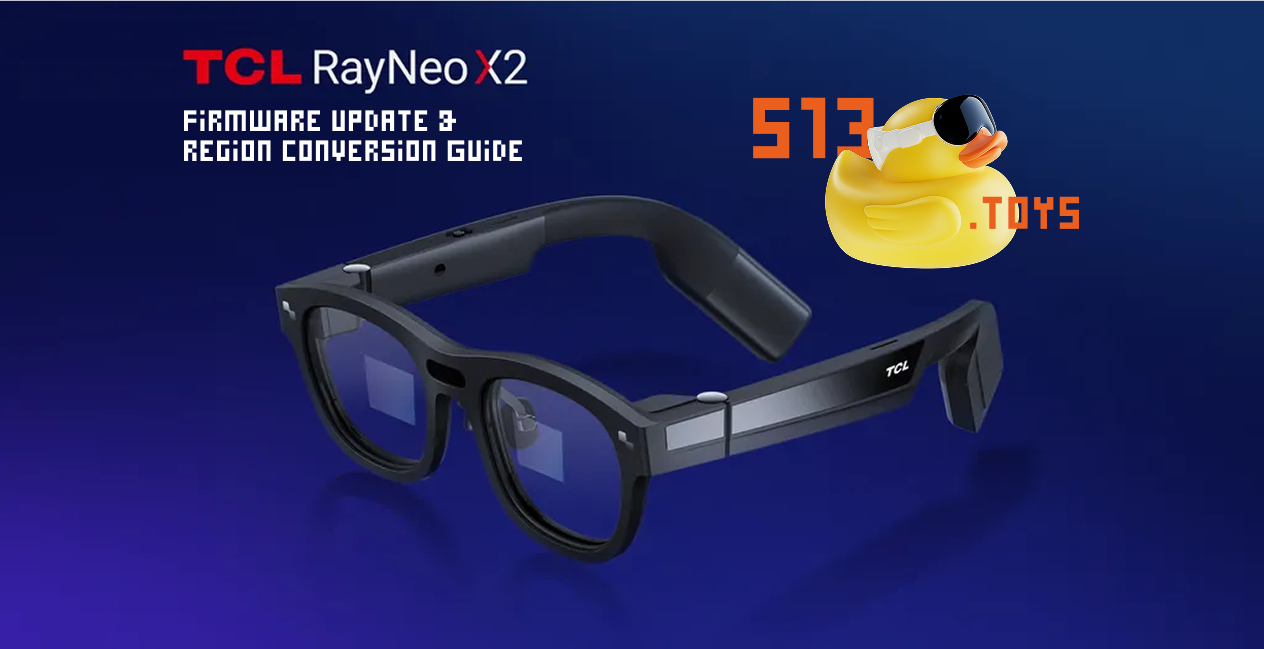
The X2 Smart Glasses are an advanced wearable device designed to integrate augmented reality (AR) with smart functionalities, offering users a seamless digital experience. However, due to regional firmware differences, devices sold in China come with a firmware version that may limit access to certain apps, settings, and functionalities available in Europe.
This guide provides a detailed step-by-step process to update the firmware of X2 Smart Glasses from the Chinese version to the European version. By following this guide, users can unlock the full potential of their device, ensuring better compatibility, improved performance, and compliance with European software and network standards.
Why Update the Firmware?
Firmware serves as the operating system of the X2 Smart Glasses, controlling their functionality, features, and software compatibility. The Chinese firmware may include region-locked applications, different network configurations, and language restrictions that could impact usability outside of China.
Updating to the European firmware version is essential for:
✔ Unlocking Region-Specific Features – Enabling access to European-supported applications and services.
✔ Ensuring Network Compatibility – Configuring the glasses to work seamlessly with European Wi-Fi and mobile networks.
✔ Improving Software Stability & Security – Updating to the latest version ensures better performance, bug fixes, and security patches.
✔ Switching Language & UI Settings – Adapting the interface for a more convenient user experience.
✔ Enabling Developer Access & Customization – Removing potential restrictions that prevent modifications or sideloading apps.
By performing this firmware update, your X2 Smart Glasses will function as intended for the European market, allowing you to use them without limitations.
Overview of the Firmware Update Process
The firmware update process requires installing specific tools on a computer, connecting the glasses via USB, and using software commands to replace the existing firmware. This guide will take you through each step in detail to ensure a smooth and successful update.
Installing the Required Software
Step 1: Install TPST_Frame setup V1.9.0.msi
Install TPST_Frame setup V1.9.0.msi
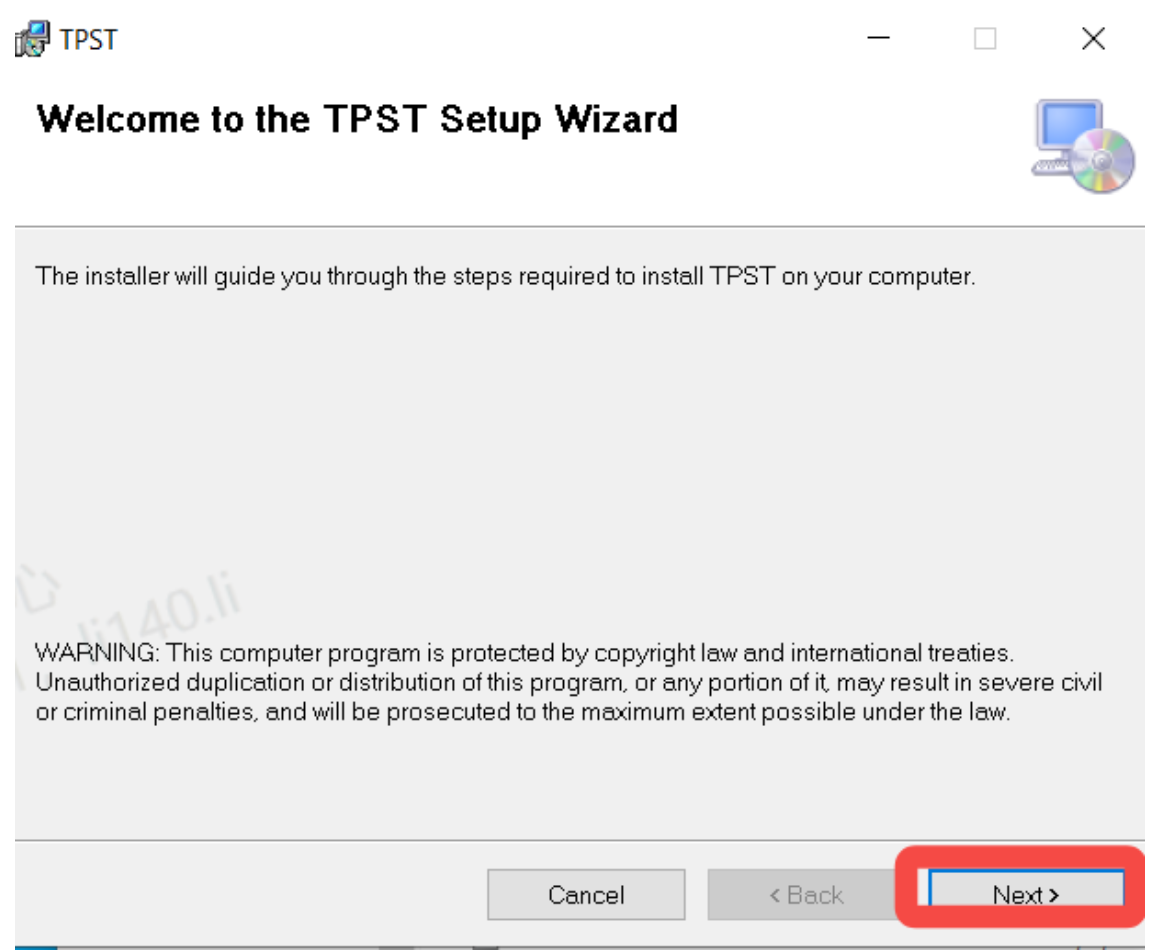
1- Double-click to install

2- Click Next → Next → Close to finish installation.
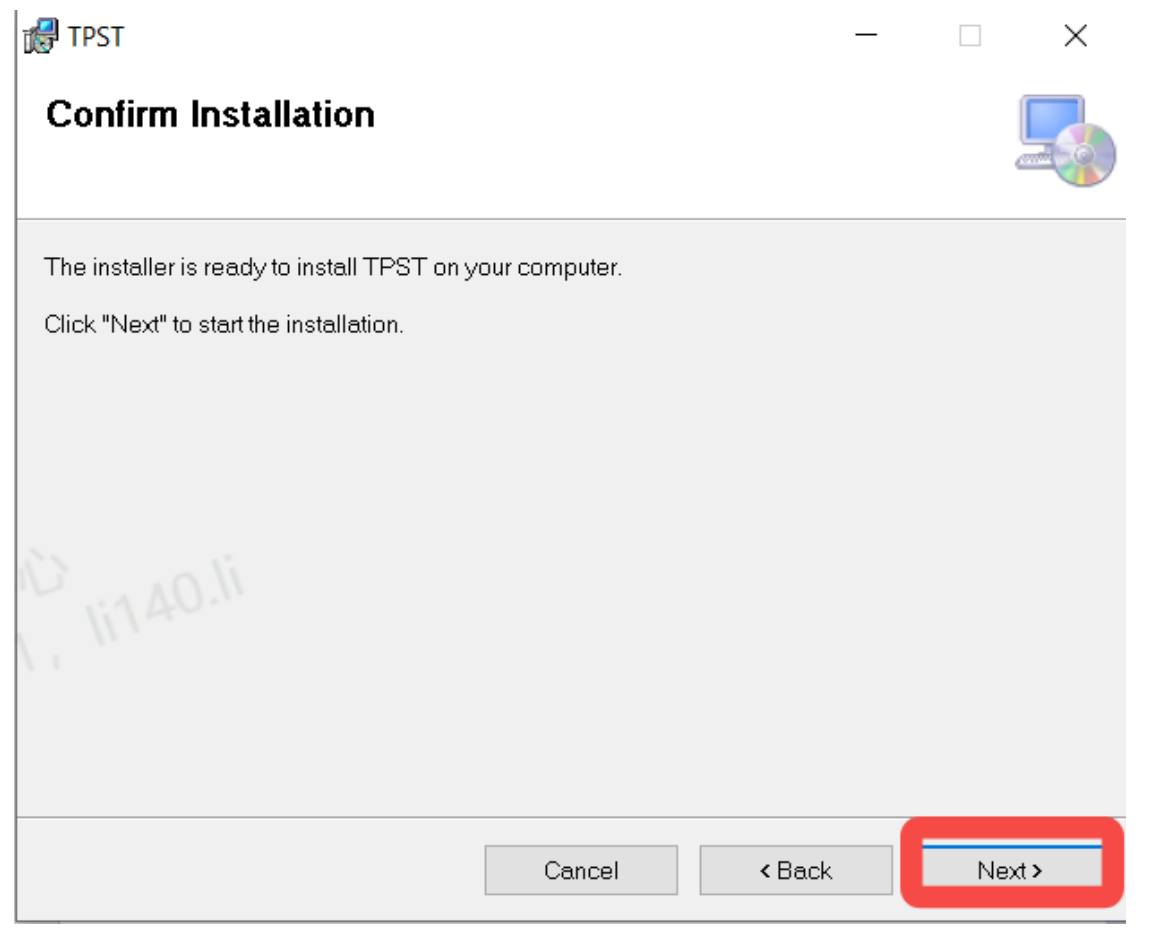
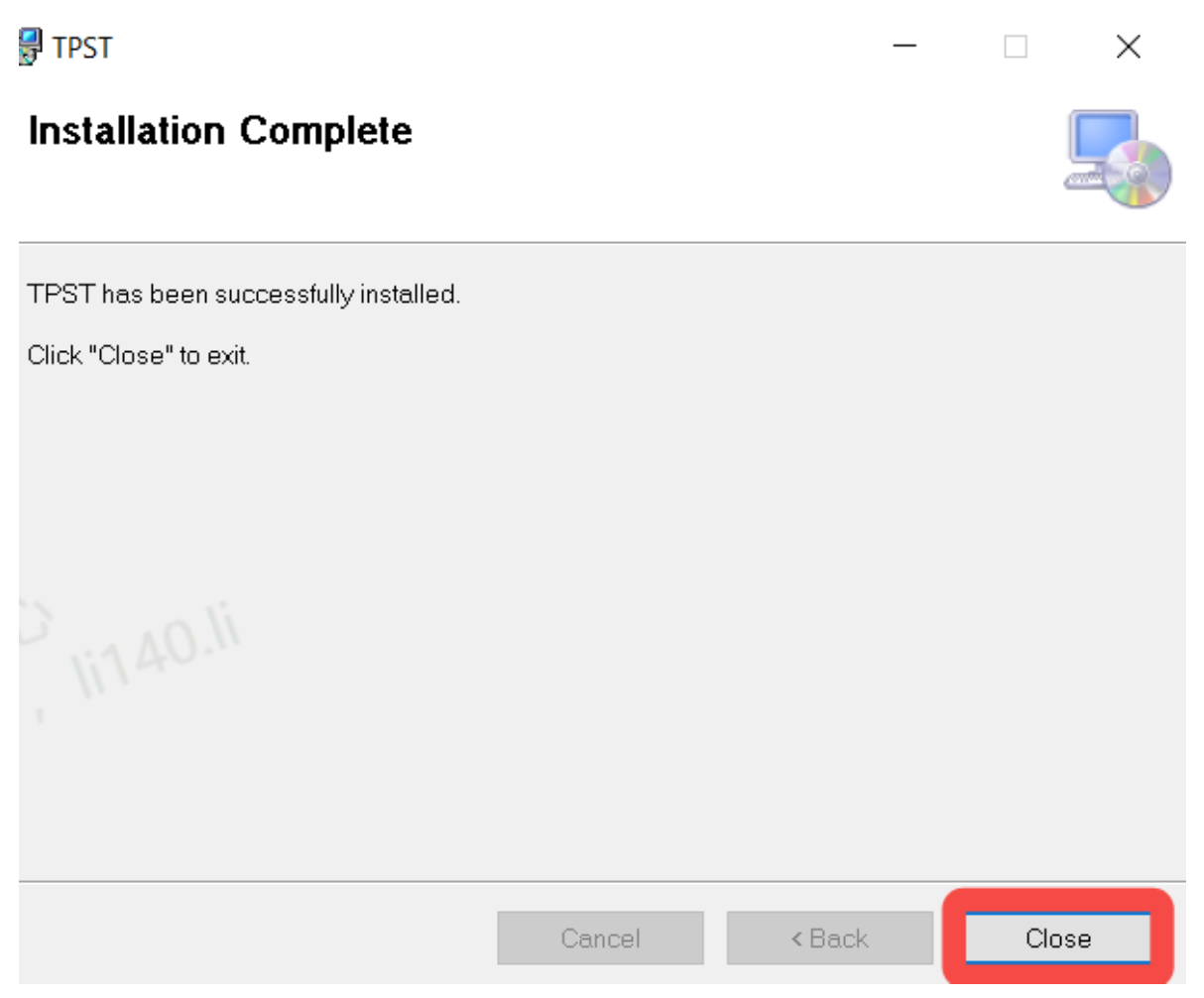
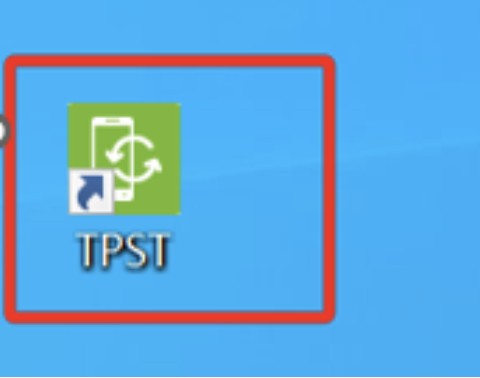
3- Icon appears on the desktop and the installation is successful
Step 2: Install ARGT78_Model_DLL Setup Develop v1.0.0.msi
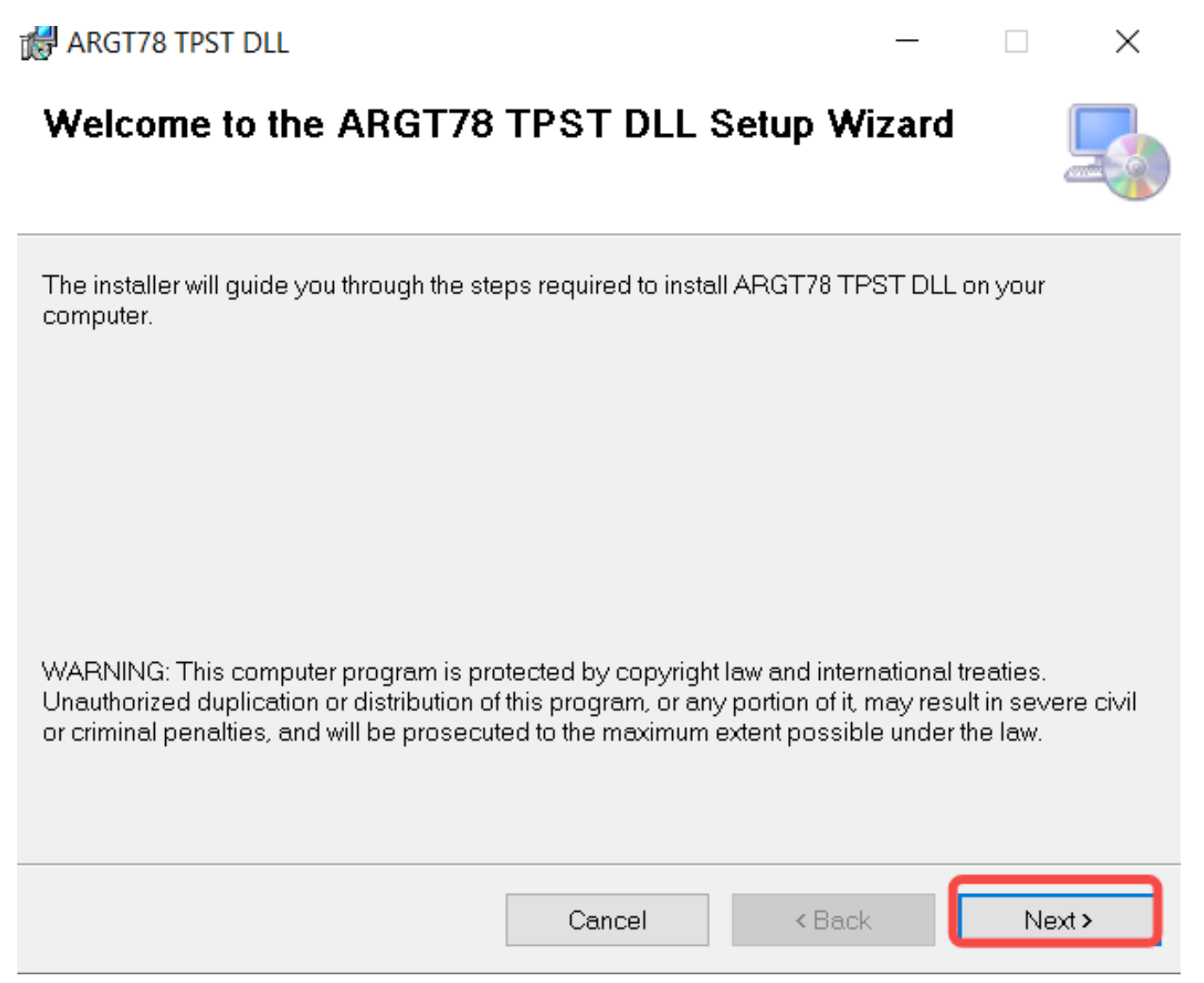
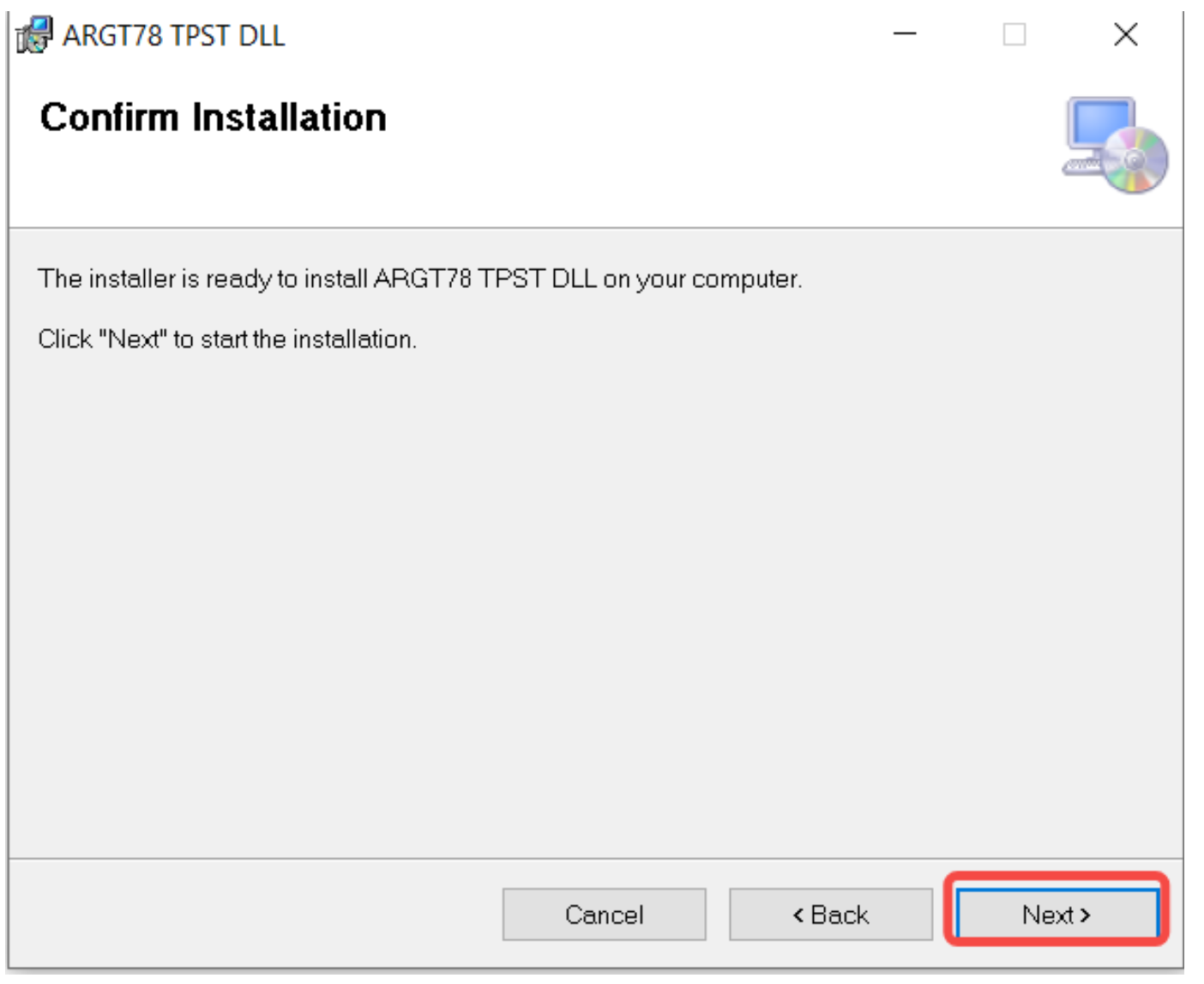
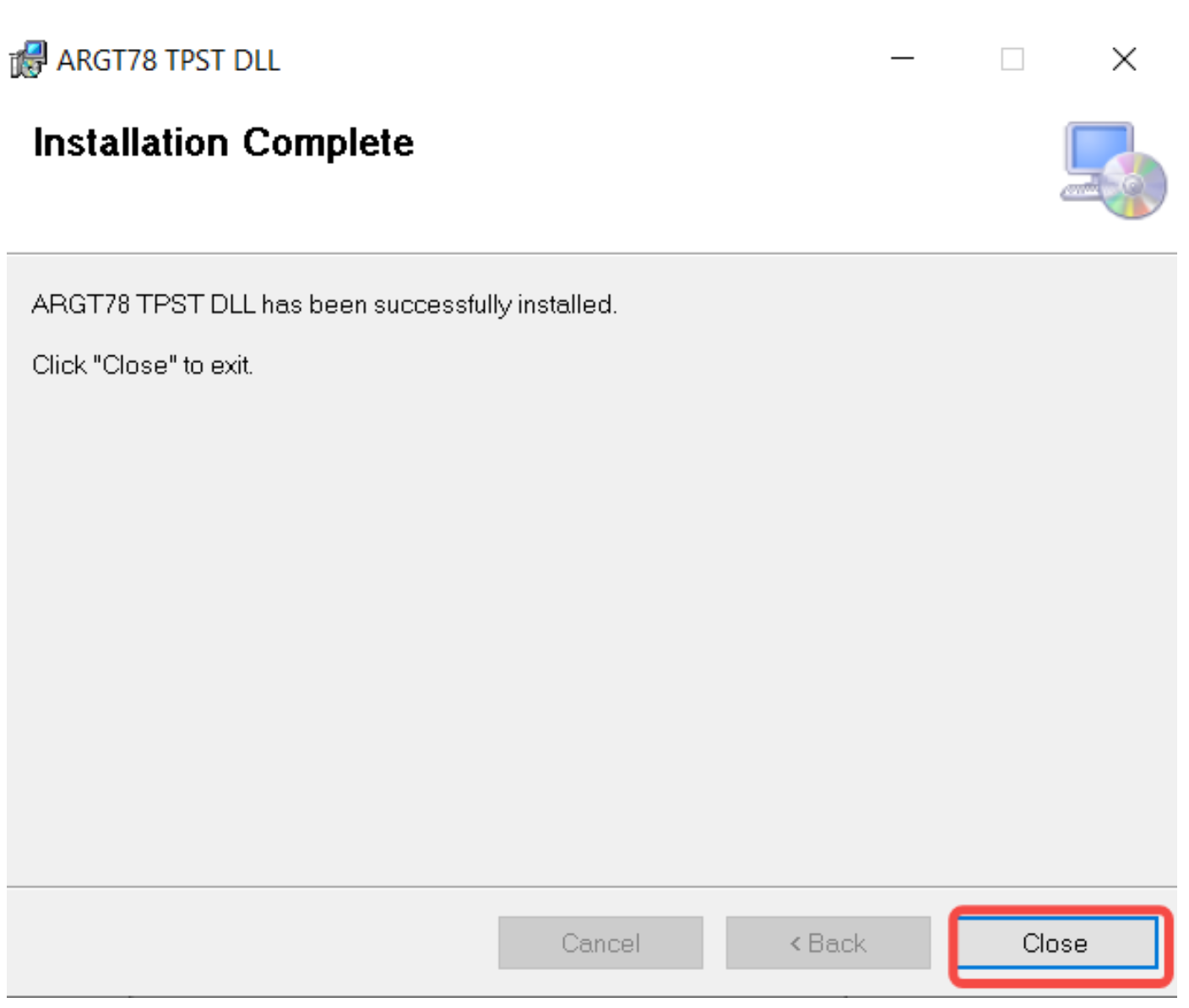
1- Double-click to install

2- Click Next → Next → Close to finish installation.
Step 3: Download the software version
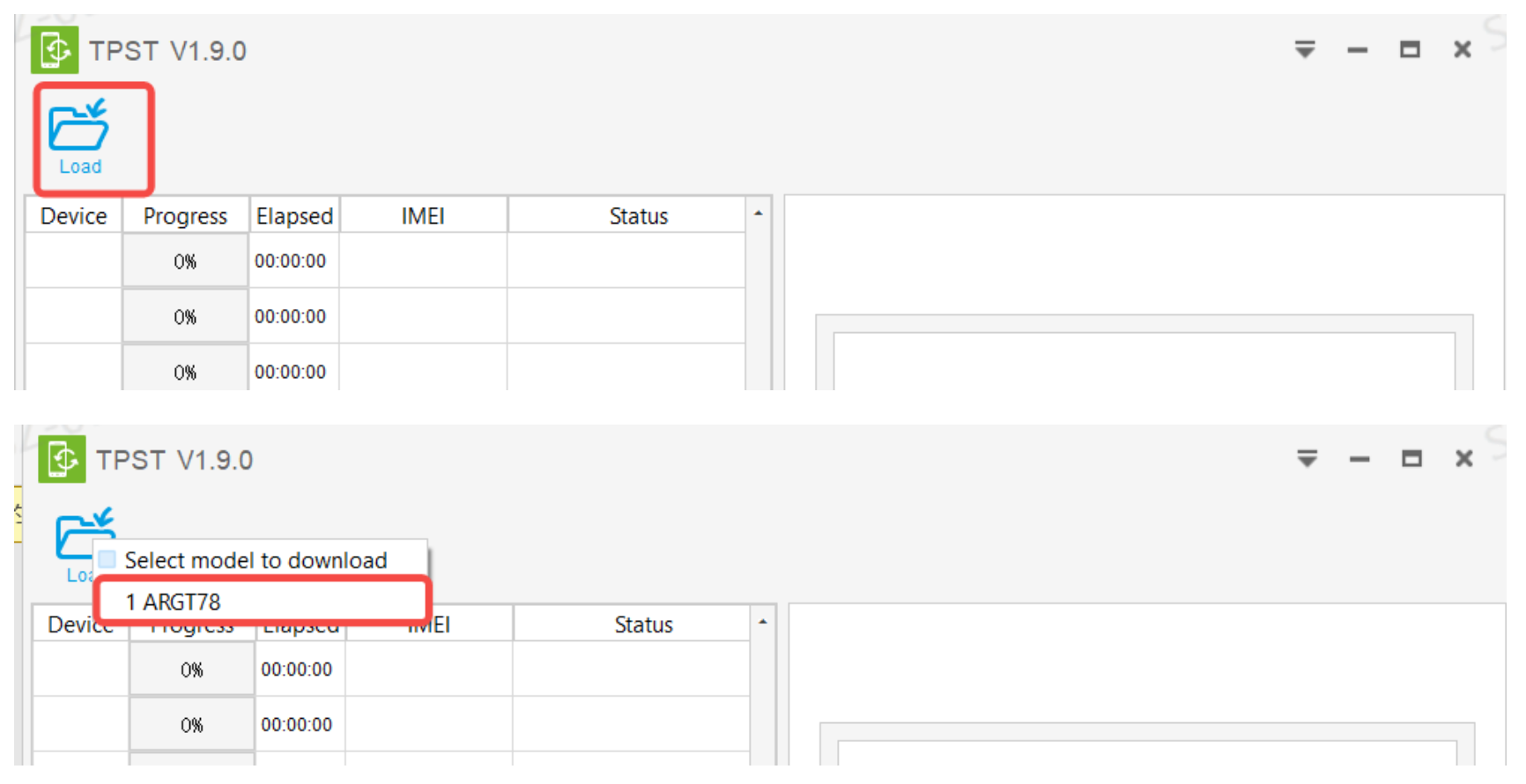
1- Open TPST then click “Load”, select “ARGT78”
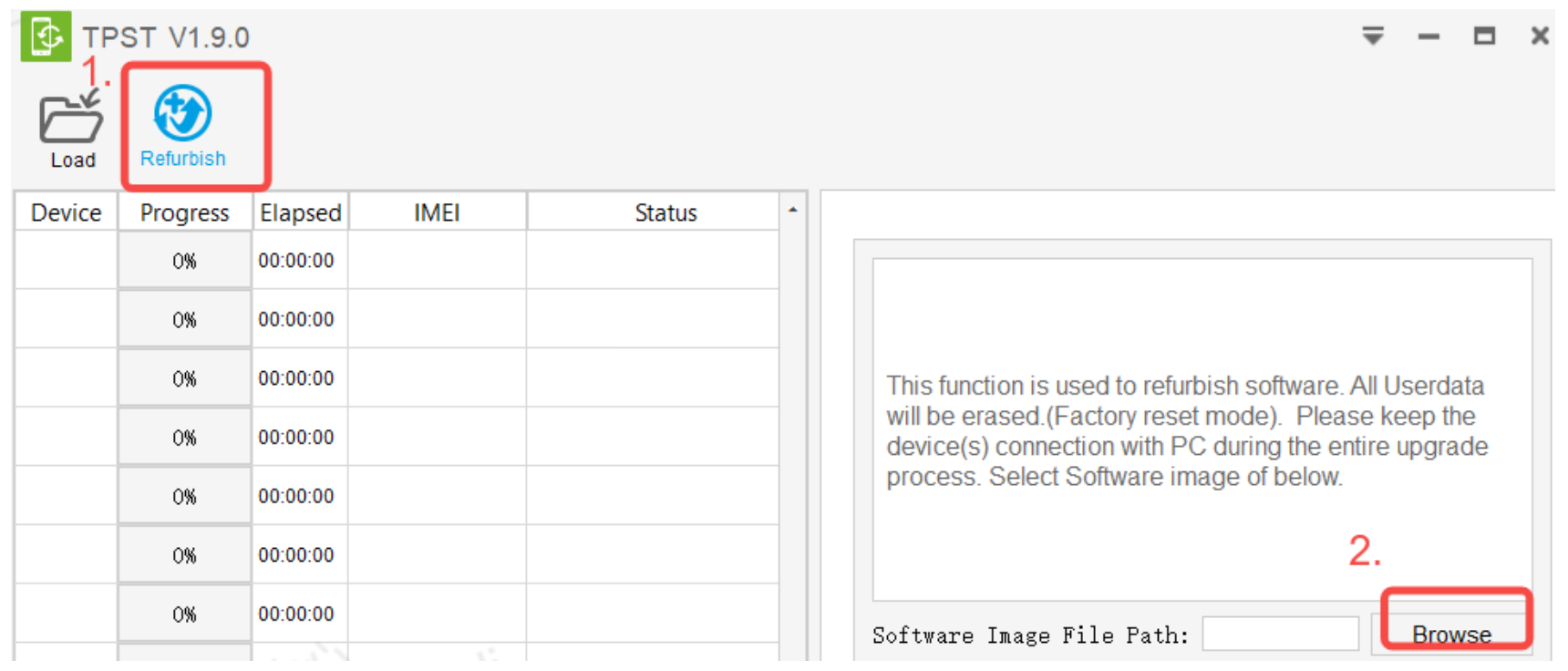
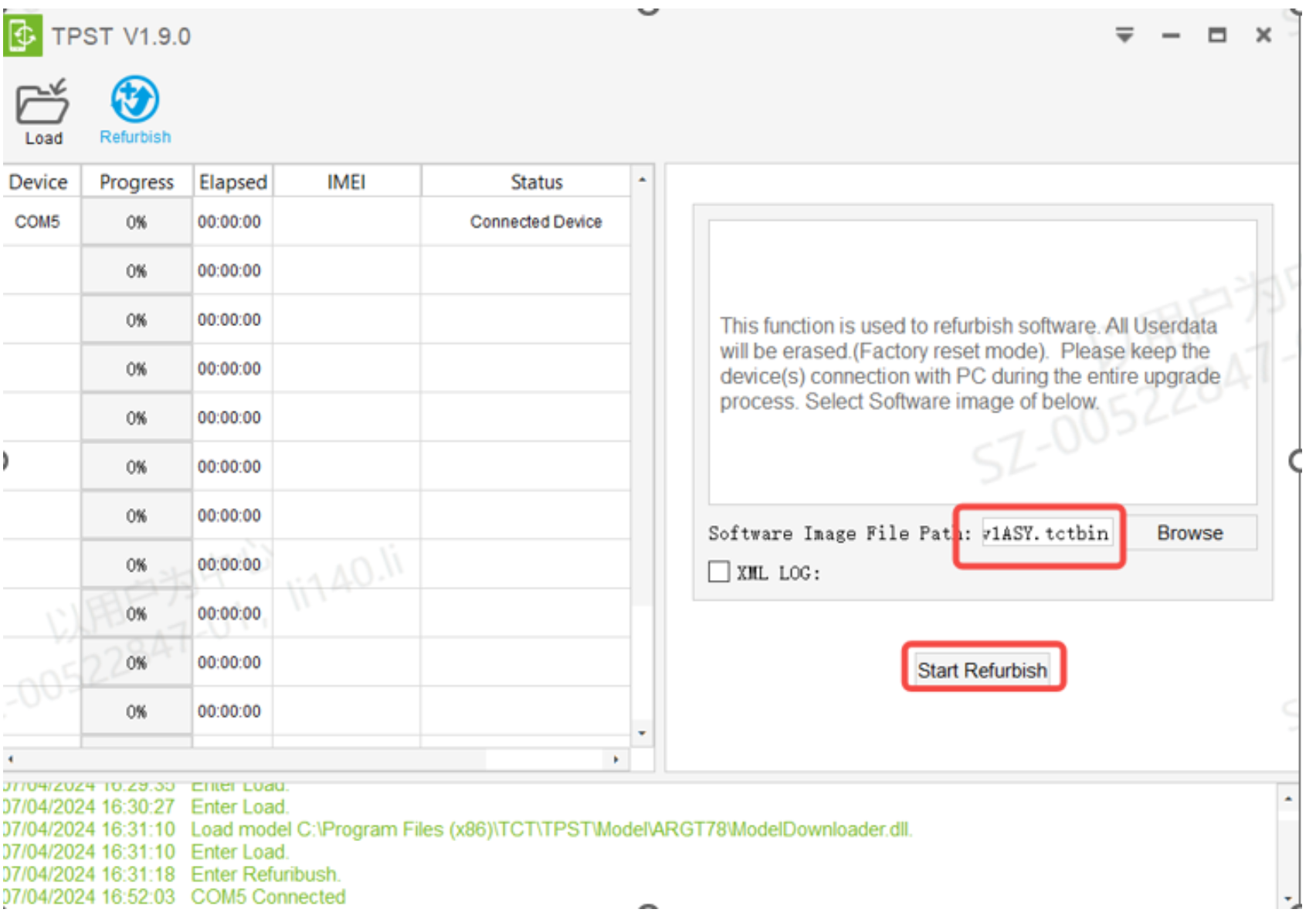
2- Click Refurbish,then click Browse to choose version
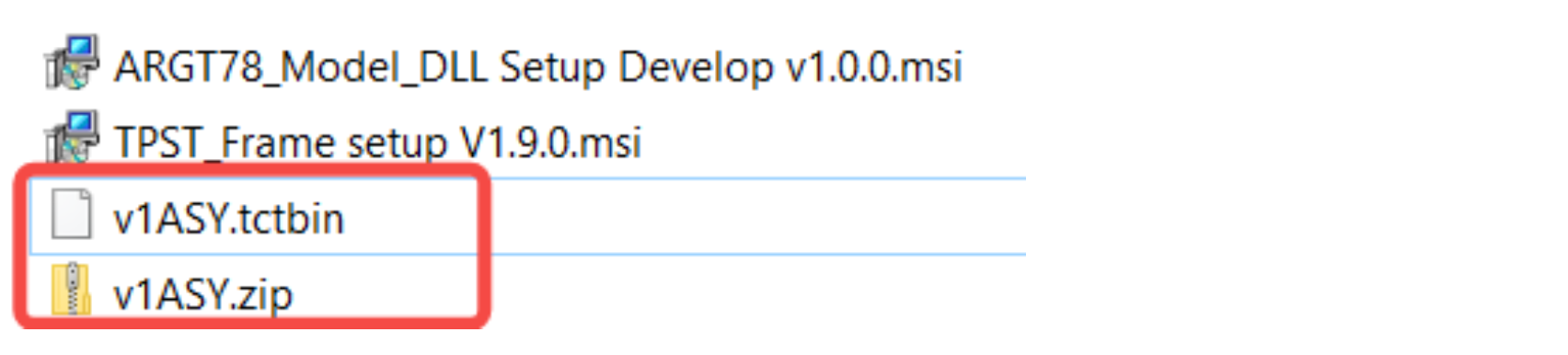
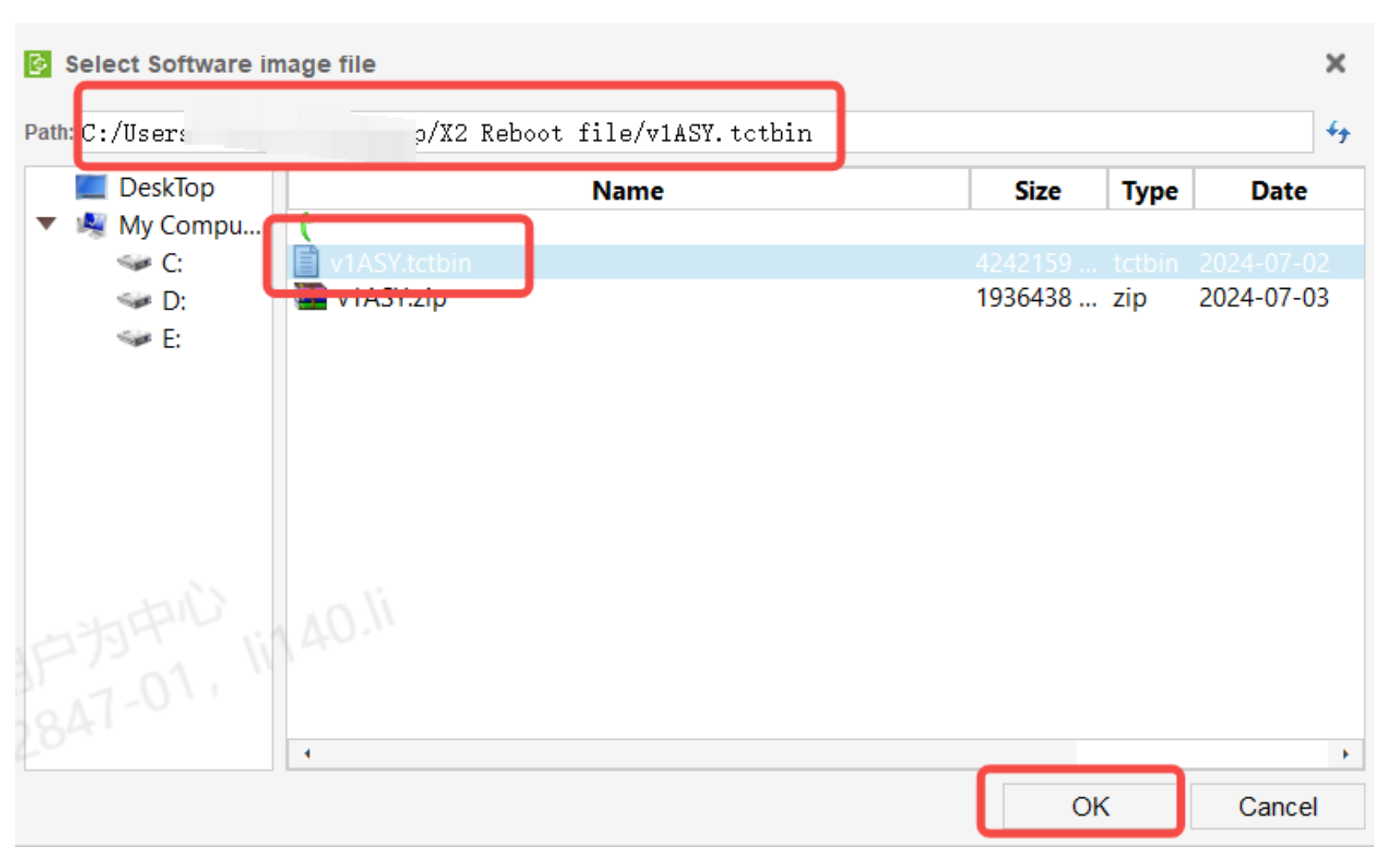
3- Decompress the v1ASY.zip, Choose the decompress file v1ASY.tctbin(Verion: v1ASY)
Step 4: Reboot the glasses
1- Check whether the computer is installed ADB, if not Google search for installation
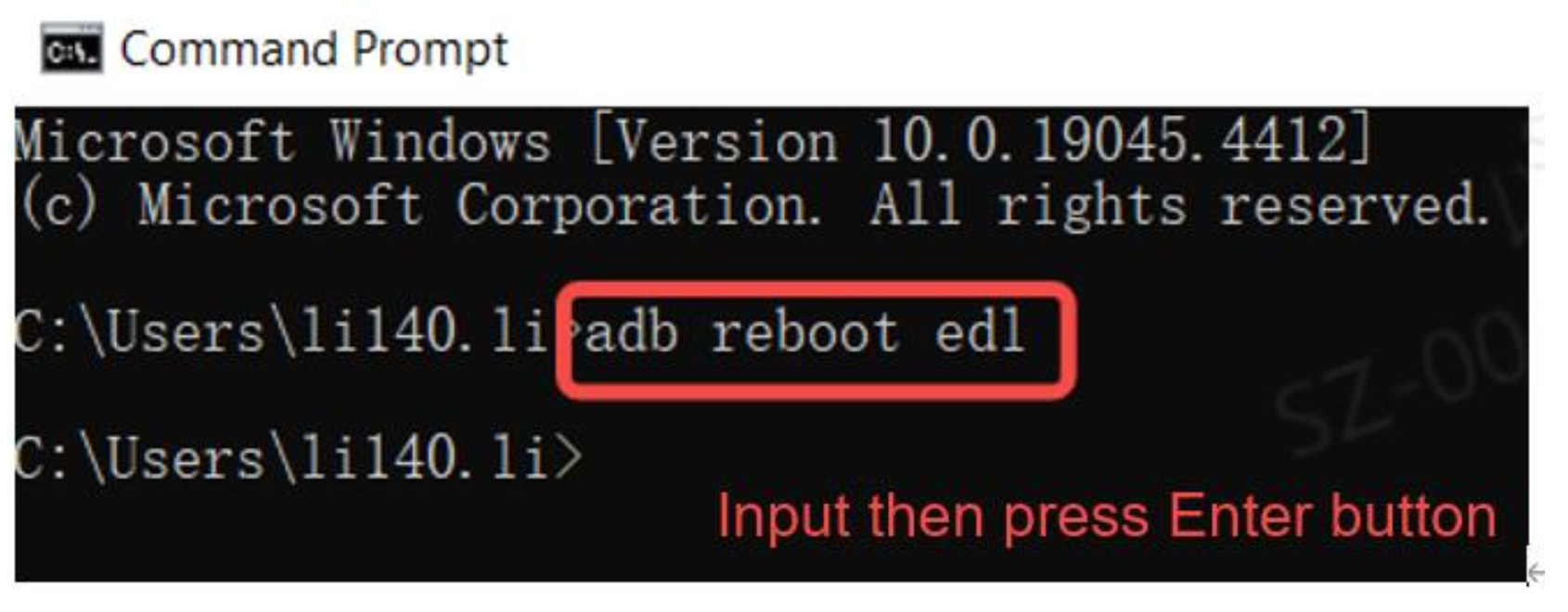
2- After connecting the charging cable of the glasses to the computer, long press the power button of the glasses to turn on it, then enter the command “adb reboot edl” in
the command window to put the glasses into download mode (at this point the glasses indicator disappears).
3- Click on Start Refurbish once the glasses are in download mode.
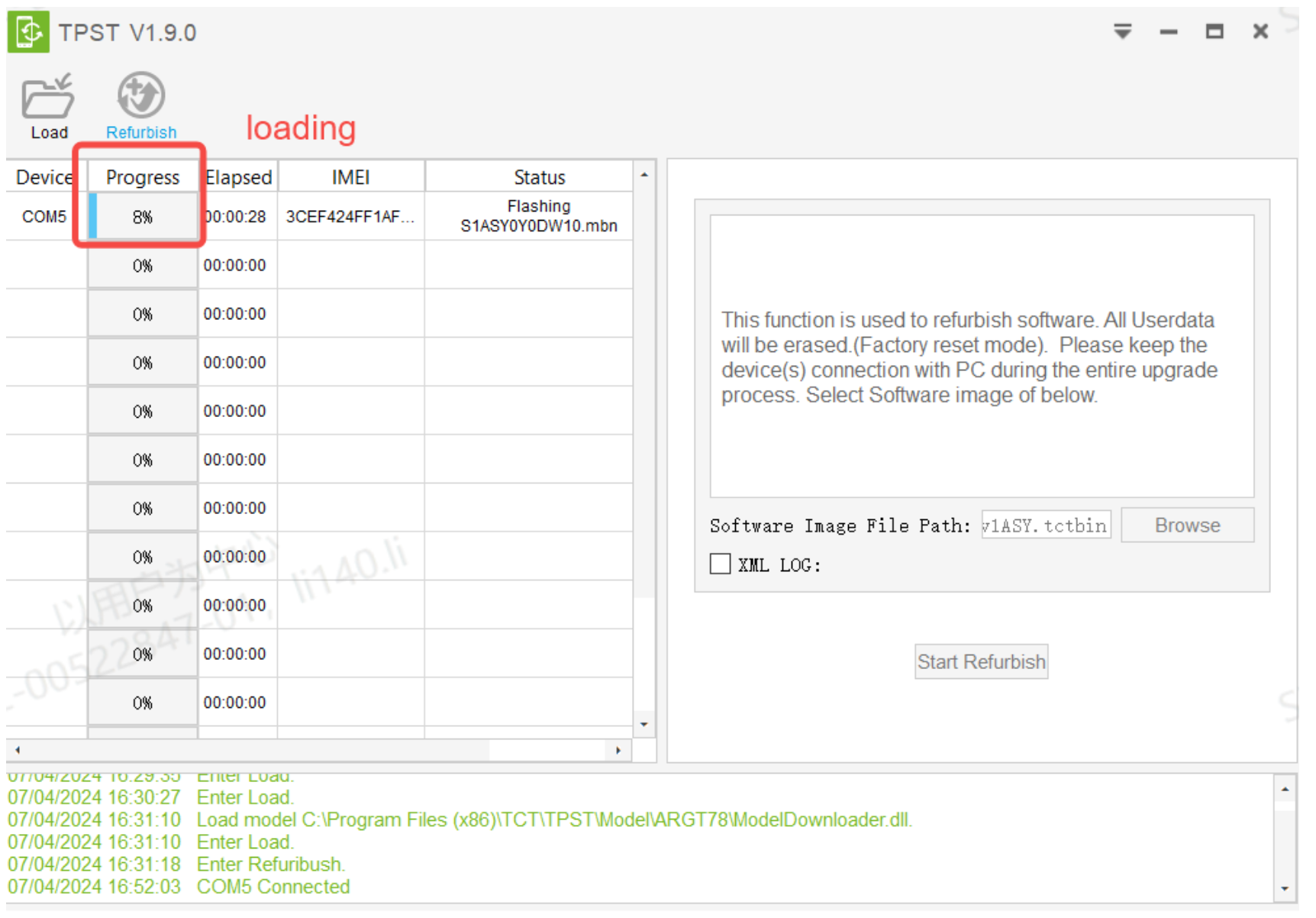
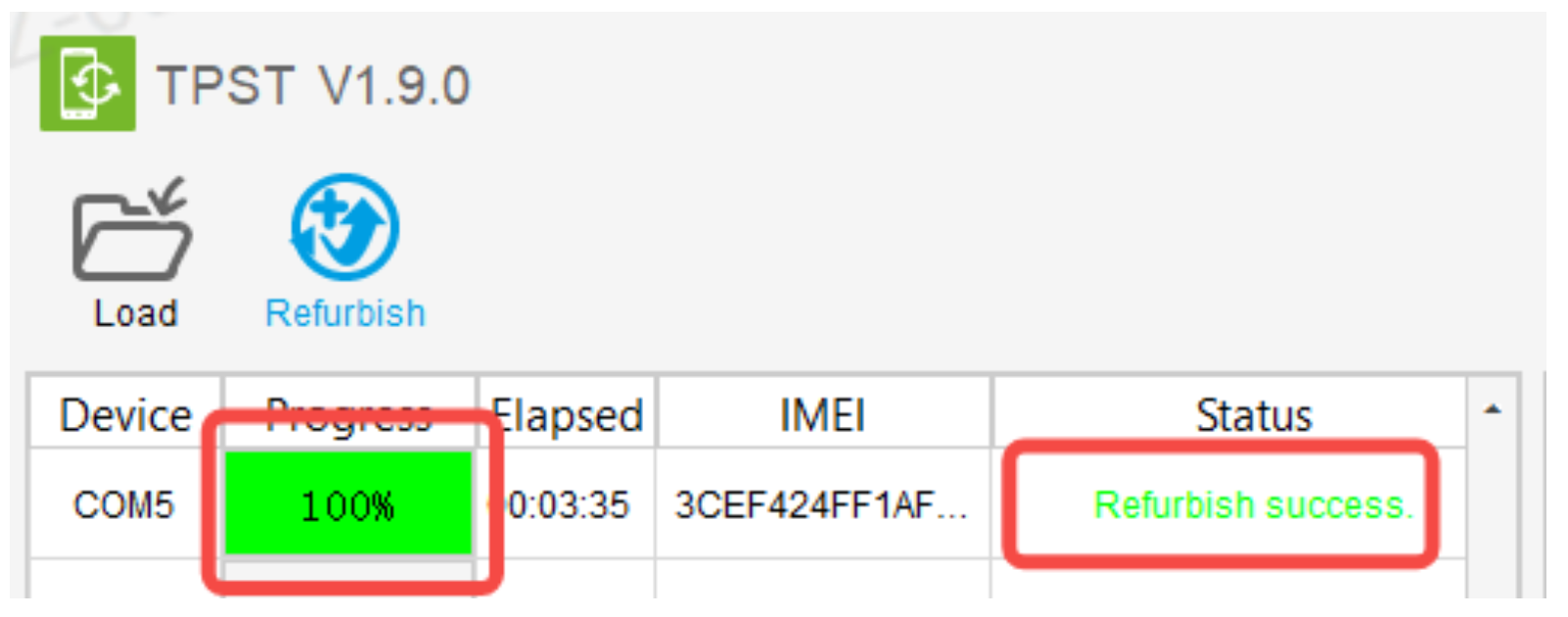
4- Glasses indicator lights up when the version is successfully downloaded and installed.
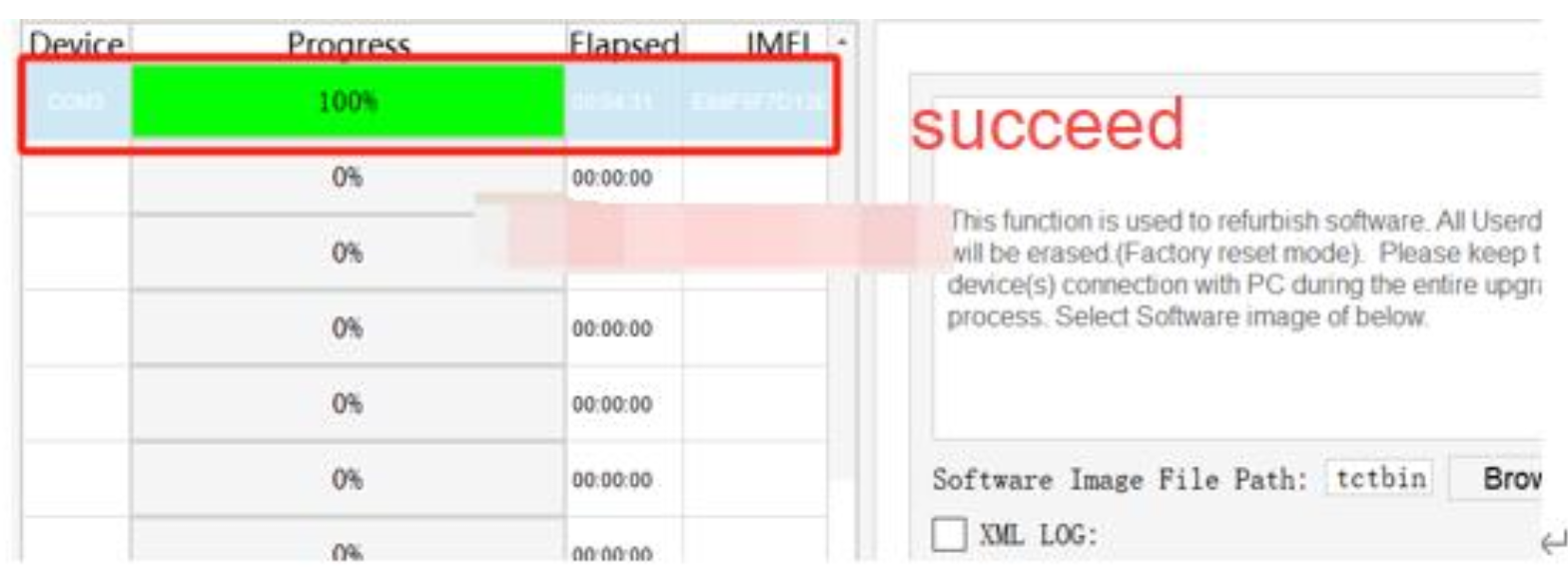
Note: After successful download and installation, type “ adb shell getprop
ro.vendor.build.fingerprint” in the command window to see the glasses version as 1ASY.

Who Should Use This Guide?
This guide is designed for X2 Smart Glasses users, technicians, and developers who need to convert the firmware from the China version to the European version. Basic knowledge of software installation and command-line operations is recommended.
By following this process, users can remove regional restrictions, unlock new features, and ensure their X2 Smart Glasses are fully optimized for use in Europe.